
Shopify Apps & Tools Reviews
How to Find & Delete Duplicate Products on Shopify (Bulk Fix)
Oct 16, 2026

Quick answer: Duplicate products on Shopify usually come from a bulk edit, a CSV import or a sync app, and Shopify won't warn you. You can spot them by their product handle, since copies end in -1 or -2. To remove them manually, export your products, tag the copies in Google Sheets, re-import the CSV, then filter by that tag and bulk delete. On a big catalog, a free app like DDP Delete Duplicate Products finds every duplicate by title, SKU or barcode and deletes them in a few minutes instead of a few hours.
Key takeaways
You probably didn't create the duplicates yourself. Bulk edits, CSV imports and sync apps can quietly copy products, with no warning from Shopify.
Duplicates aren't harmless. Copies drift apart: different stock, different photos, different prices, and customers can't tell which one is real.
The handle gives them away. A duplicated product gets the same URL handle plus -1 or -2 at the end.
A CSV can't delete products. Removing rows from the file does nothing. Use the CSV to tag duplicates, then delete them from the Products page.
For big or frequently synced catalogs, use an app. It finds duplicates by title, SKU or barcode and bulk-deletes them by a rule you choose.
Why Shopify ends up with duplicate products

If you see the same product two or three times in your Shopify admin, you're not alone. And the strange part is that you probably didn't cause it on purpose. A bulk edit, a CSV import or a sync app can quietly create copies of your products, and Shopify won't even warn you.
The worst part is that those copies aren't always identical. One has photos and the other doesn't. One shows your sale price and the other shows the old one. Your customer has no idea which one is the real product.
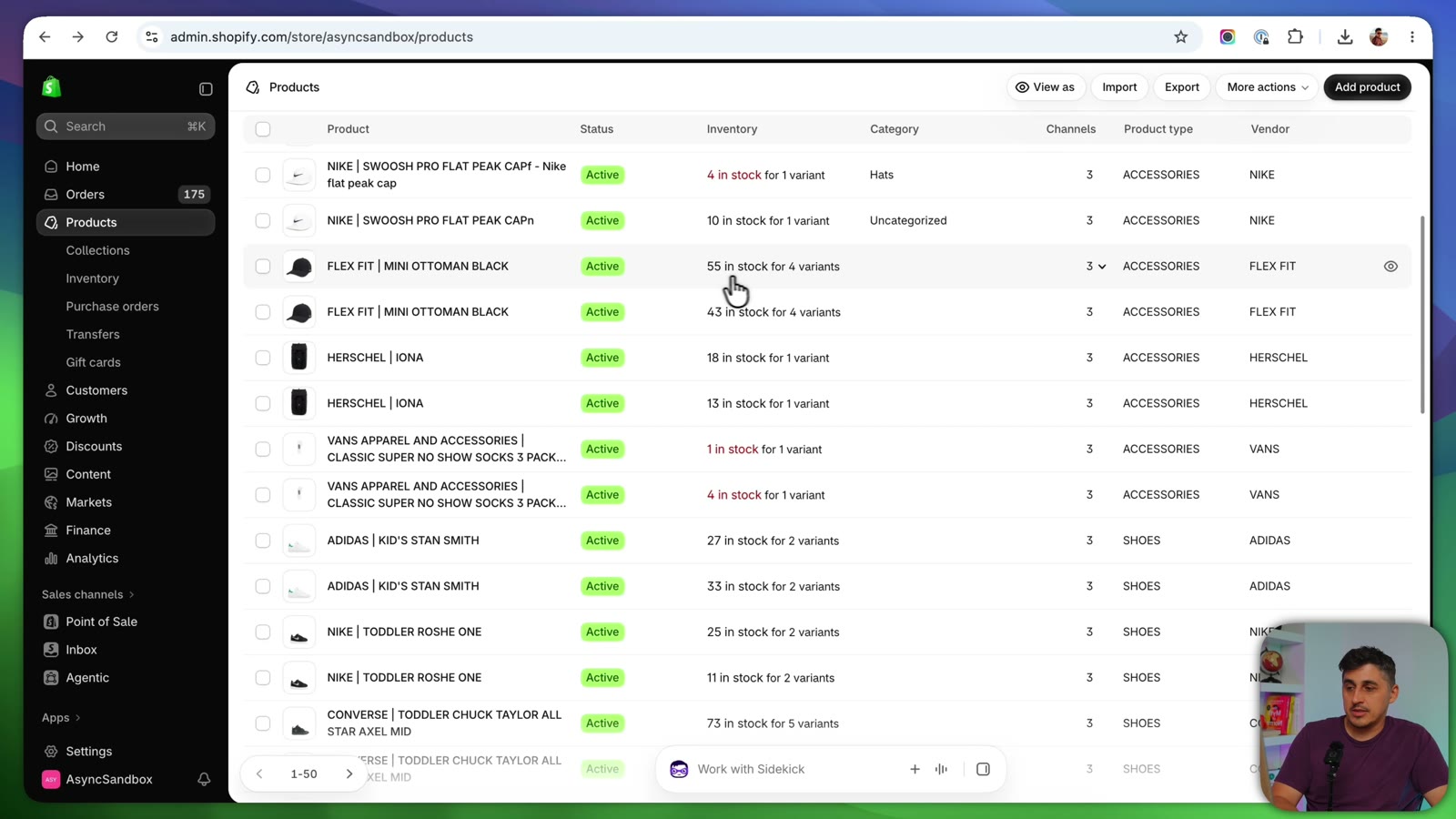
In my test store, the same product showed up with 55 in stock on one copy and 43 on the other. They probably started with the same number, but customers bought from one copy more than the other, so stock was deducted from just that one. Now neither number tells you what you actually have.
With a few items, that's easy to spot and fix by hand. My catalog has over 1,500 items and a lot of imports, though, so going one by one isn't an option. Below are two ways to fix it: the manual way, which takes more work, and the app way, which makes it a breeze.
How to spot duplicate products: check the handle
Open one of the products you suspect and scroll down to Search engine listing. The handle is the end of the product's URL. When a product gets duplicated, the copy keeps the same handle with -1 or -2 added at the end.

In my case, one copy ended in -2 and the other in -1. That told me the product was duplicated twice, so there also had to be an original without a number.
Tip: your pattern might look different depending on how your handles are formatted and what created the copies (for example, an app that duplicated your catalog). Open two or three duplicates first and figure out your pattern before you delete anything.
To confirm, I looked at the tags. On my products, the tags were duplicated too: each tag appeared three times, which was another sign of a third version. Filtering the product list by that tag brought up all three copies. Opening the first one showed the handle without a suffix, which was the original.
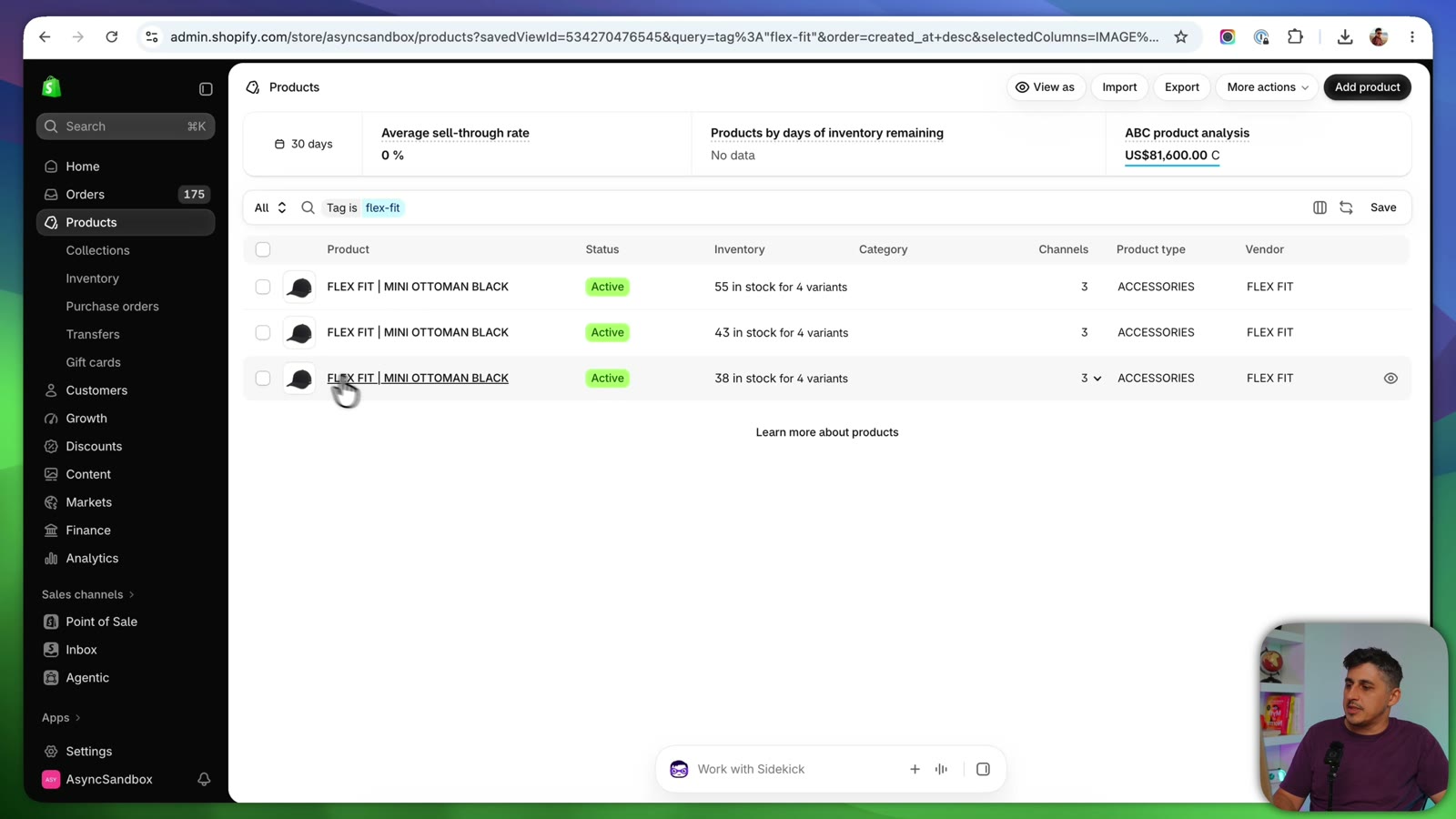
You could select the copies right here and delete them. On a large catalog, though, that would take forever. That's why the manual method below works in bulk.
Method 1: Find and delete duplicates manually (CSV + Google Sheets)
This method is free and uses only Shopify and Google Sheets. It's more work, but it's a good fit for a smaller store.
Step 1: Export your products to CSV
Go to Products → Export. Choose Current page if you just want to test on the products you're viewing, or All products for the whole catalog (that export takes a bit longer). Pick CSV for Excel, Numbers, or other spreadsheet programs and click Export products. Save the file to your computer.
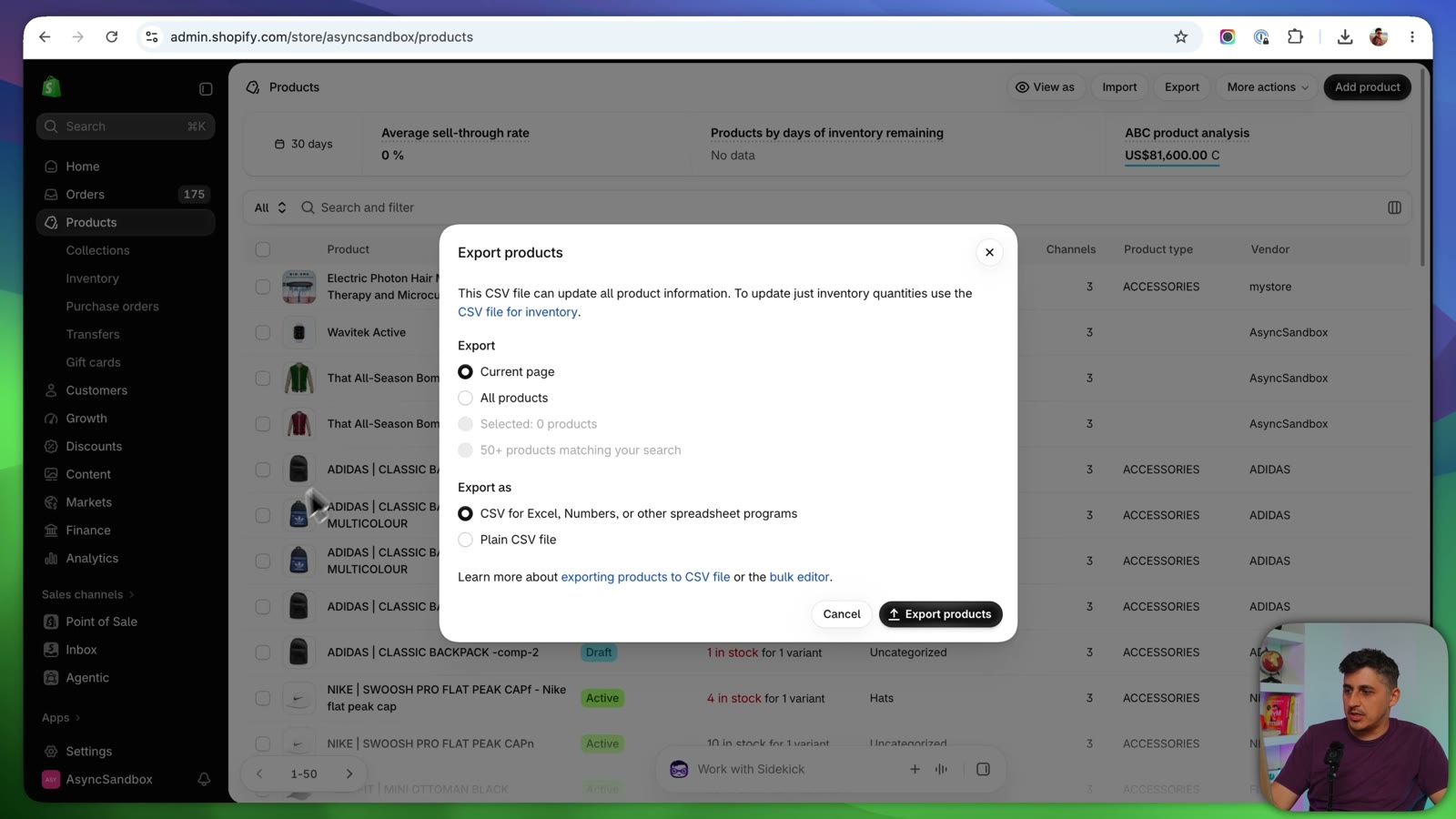
Step 2: Open the file in Google Sheets
Open an empty Google Sheet, go to File → Open → Upload and upload the CSV. You'll see the Handle column first and the Title next to it, with every product handle listed below.
Step 3: Filter the handles that end in -2 (or -1)
Click the filter button, open the filter on the Handle column and choose Filter by condition → Text ends with. Type -2 and click OK. Now only the duplicated products are listed.
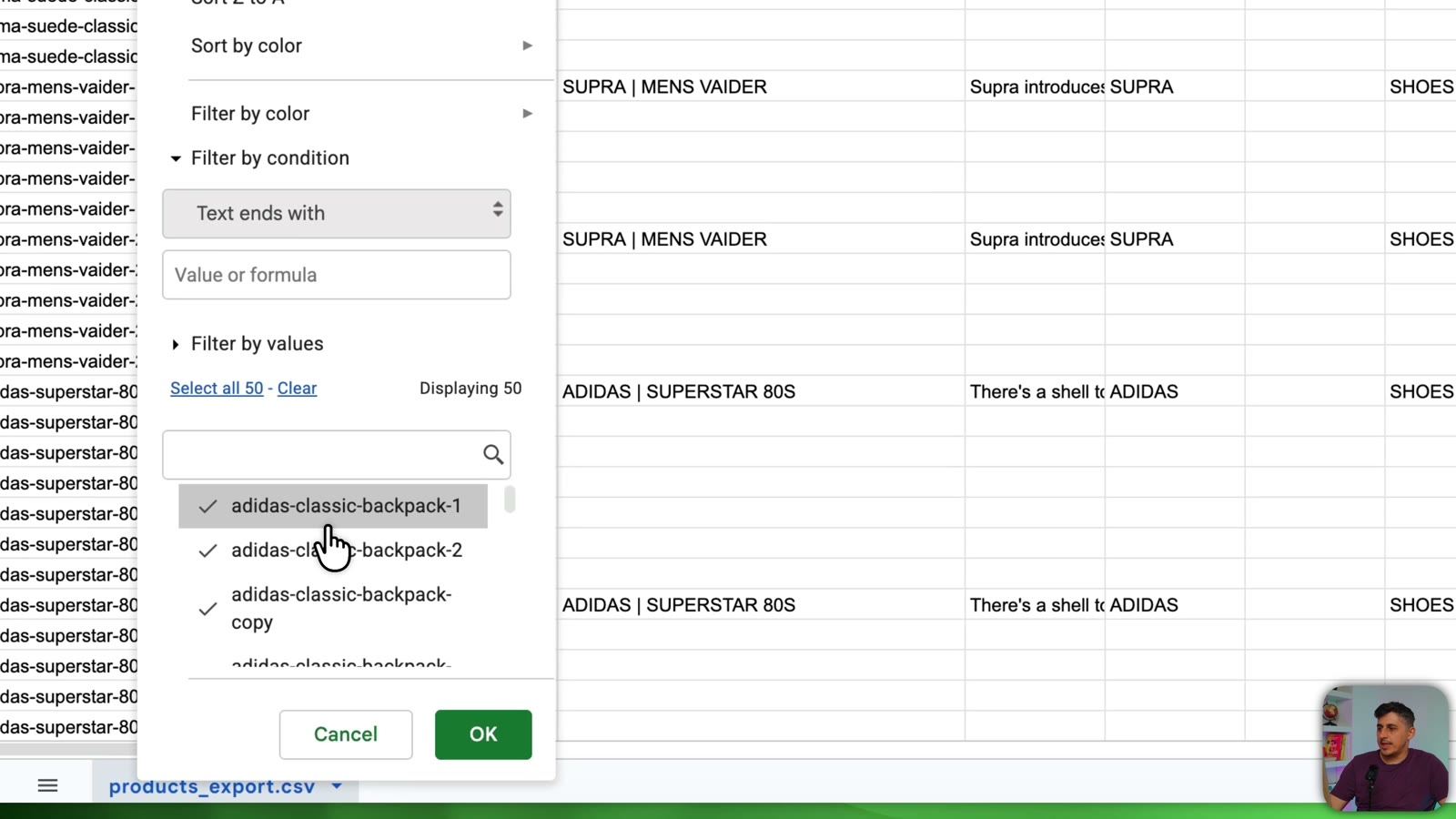
Step 4: Add a "duplicate" tag to each one
Find the Tags column. For each filtered row, add a new tag at the end of the existing ones: , duplicate. Repeat the filter for -1 if you have those too.
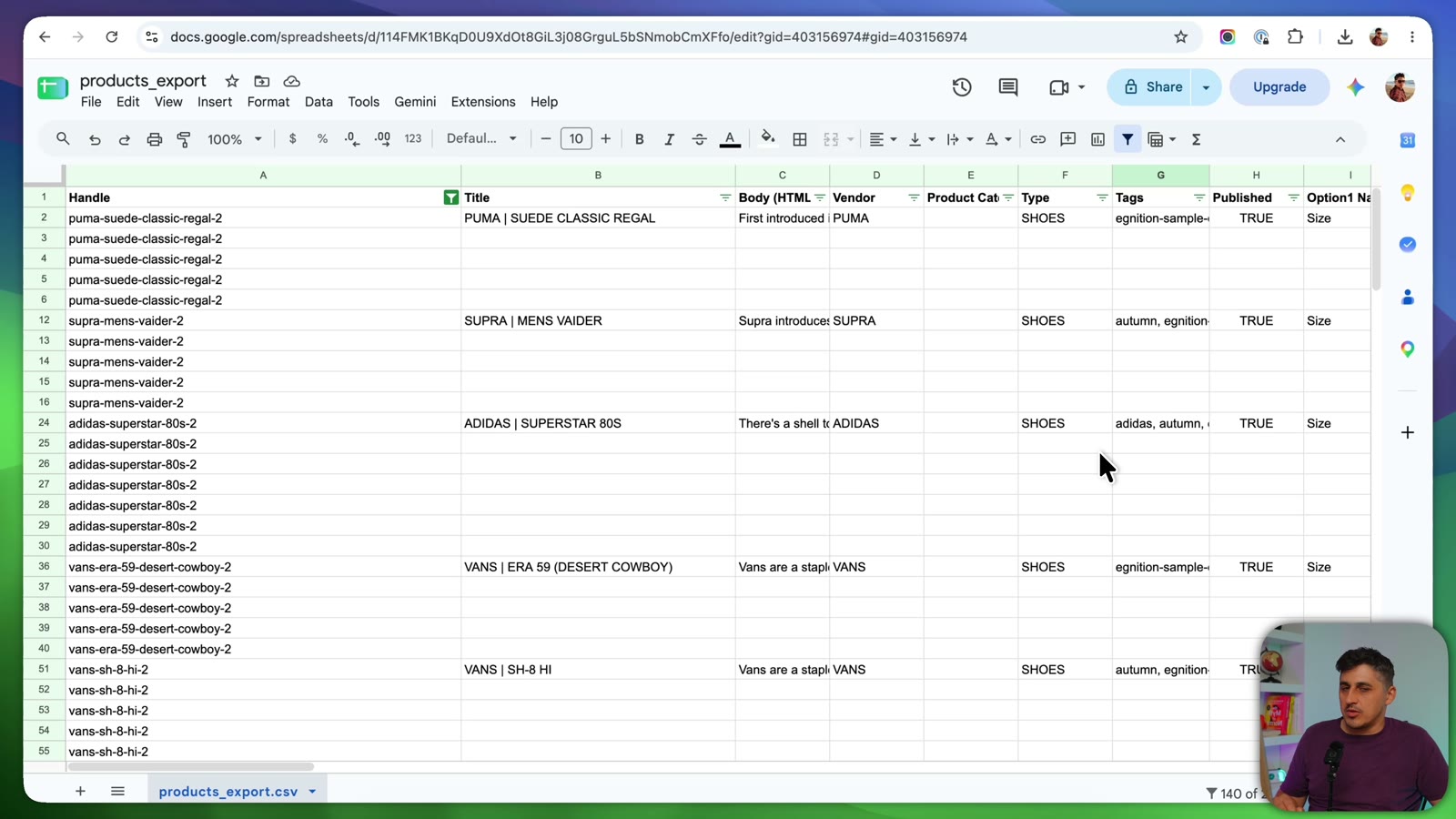
Important: add the tag row by row. These products have different tags, so don't copy one product's tag cell and paste it down the column. You'd overwrite their real tags.
Remember that I only exported one page of my catalog. With several pages, this step takes much longer.
Step 5: Re-import the CSV into Shopify
Download the sheet as Comma-separated values (.csv). In Shopify, go to Products → Import, upload the file and tick Overwrite products with matching handles. Check the preview, then click Import products.

Why not just delete the rows in the CSV? Because it doesn't work. A product CSV only writes data to existing products. If you delete a product's rows and re-upload the file, that product is simply ignored. Shopify's own docs confirm that CSV files can't be used to delete products in bulk. Deleting has to happen in the admin.
Be careful in this file. If you change handles by mistake, the import can create even more duplicates.
Step 6: Filter by the "duplicate" tag and bulk delete
Wait for the import notification. Then go to Products → Search and filter → Tagged with and pick duplicate. Shopify doesn't make this easy if you have a lot of tags, so you may have to scroll. If the tag isn't there yet, wait a minute, because new tags can take a moment to show up.
Now you'll see only the copies. Select them all, open the … menu and choose Delete products. In my test, that was 22 duplicates out of the 50 products I exported. It can take a little while until they're actually gone from the store.

Double-check what you've selected before you delete. Deleted products can't be restored.
Related: 7 common Shopify mistakes to avoid
Method 2: Delete every duplicate with an app (DDP)
With 1,500+ products, tagging every copy by hand and re-importing would take hours. This is where an app is worth it. I used DDP Delete Duplicate Products because it's easy to use and has a free plan, so you can try it without paying. (Not sponsored, I just like it.)
Step 1: Check duplicates
Install the app and click Check duplicates on the dashboard. It finds duplicate products and variants by title, by SKU, by barcode, or by combinations of these (title + barcode, title + SKU, SKU + barcode).

Step 2: Choose which copy to keep
Click Check options on the type you want, and you'll get the list of duplicated products. The bulk action dropdown at the top lets you pick a rule:
Keep the first added: the oldest product stays, and later copies go.
Keep the last added: useful if you uploaded an updated version and want to drop the old one.
Keep the lowest price: if you discounted an item as an update and want to remove the older version.
Keep the highest price: if a sale is over and you want to remove the cheaper copy.
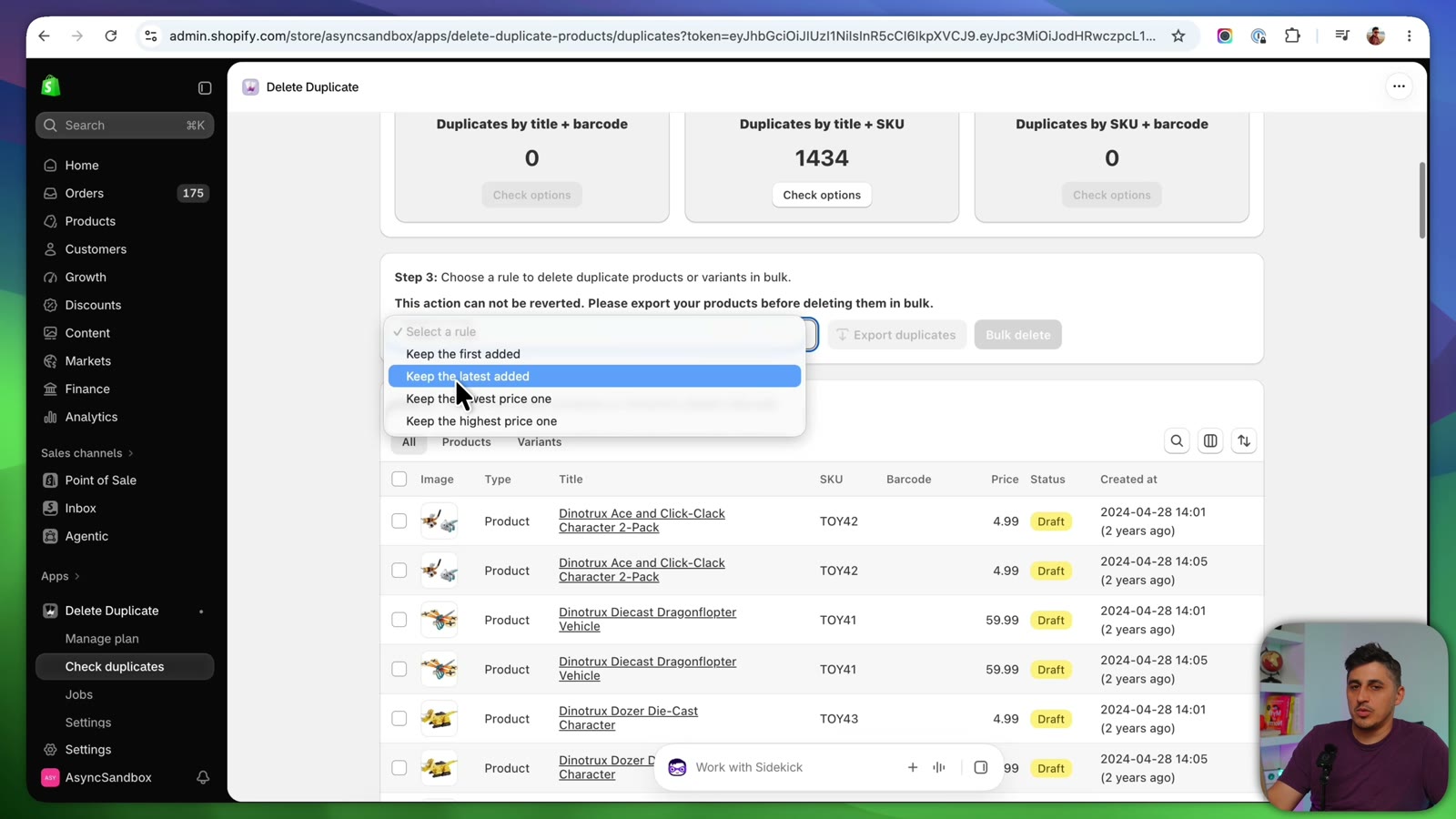
I chose Keep the first added, because all the later copies in my store were created by mistake.
Prefer to choose the copies yourself? Delete them manually in the app
A bulk rule isn't the only option. If you want to decide which copy goes, product by product, the app has a manual deletion step (Step 4 in the app). There you can search, sort and filter the duplicates by their attributes, and show or hide columns so you see exactly what you need to compare. Then you pick the ones to delete. It's the safer choice when your copies differ (different photos, prices or stock) and no single rule fits them all.
My tip: I didn't show this step in the video, but I'd use it whenever your duplicates aren't true copies. Filter the list and turn on the columns you care about (like SKU, price, status and created date), then delete only the versions you're sure about.
Double-check before you run it: this action can't be reverted. The deleted products are gone for good, so make sure you know which version you want to keep.
Step 3: Run the delete job and check the log
Start the bulk delete and a job is added with a pending status. If you spot a mistake at this point, you can still stop it. Otherwise, let it run and watch the deleted count go up. Open View details for a log of exactly what's happening.
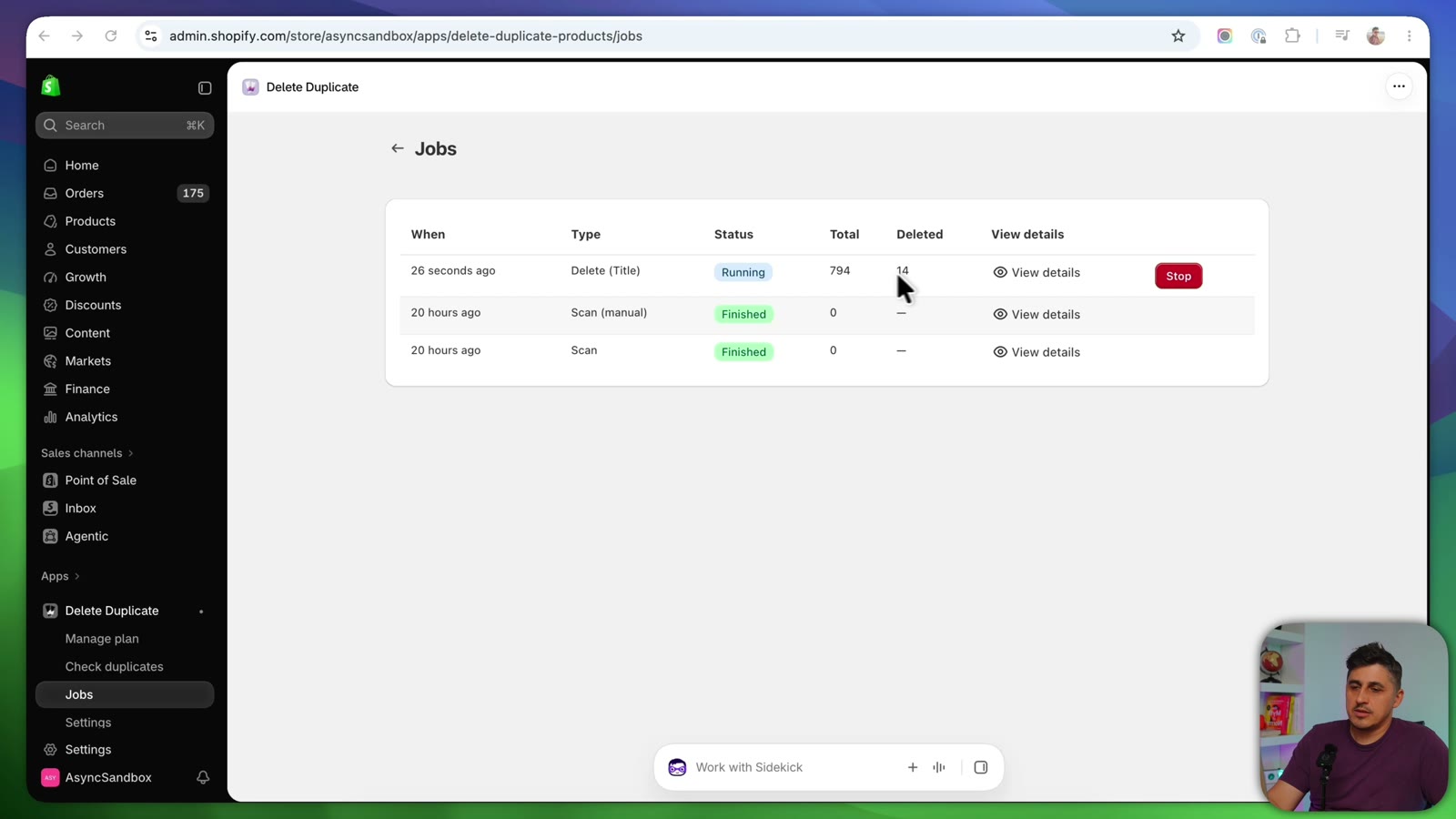
A couple of minutes later, all the duplicates were deleted, with no headaches and no spreadsheets.
Which method should you use?
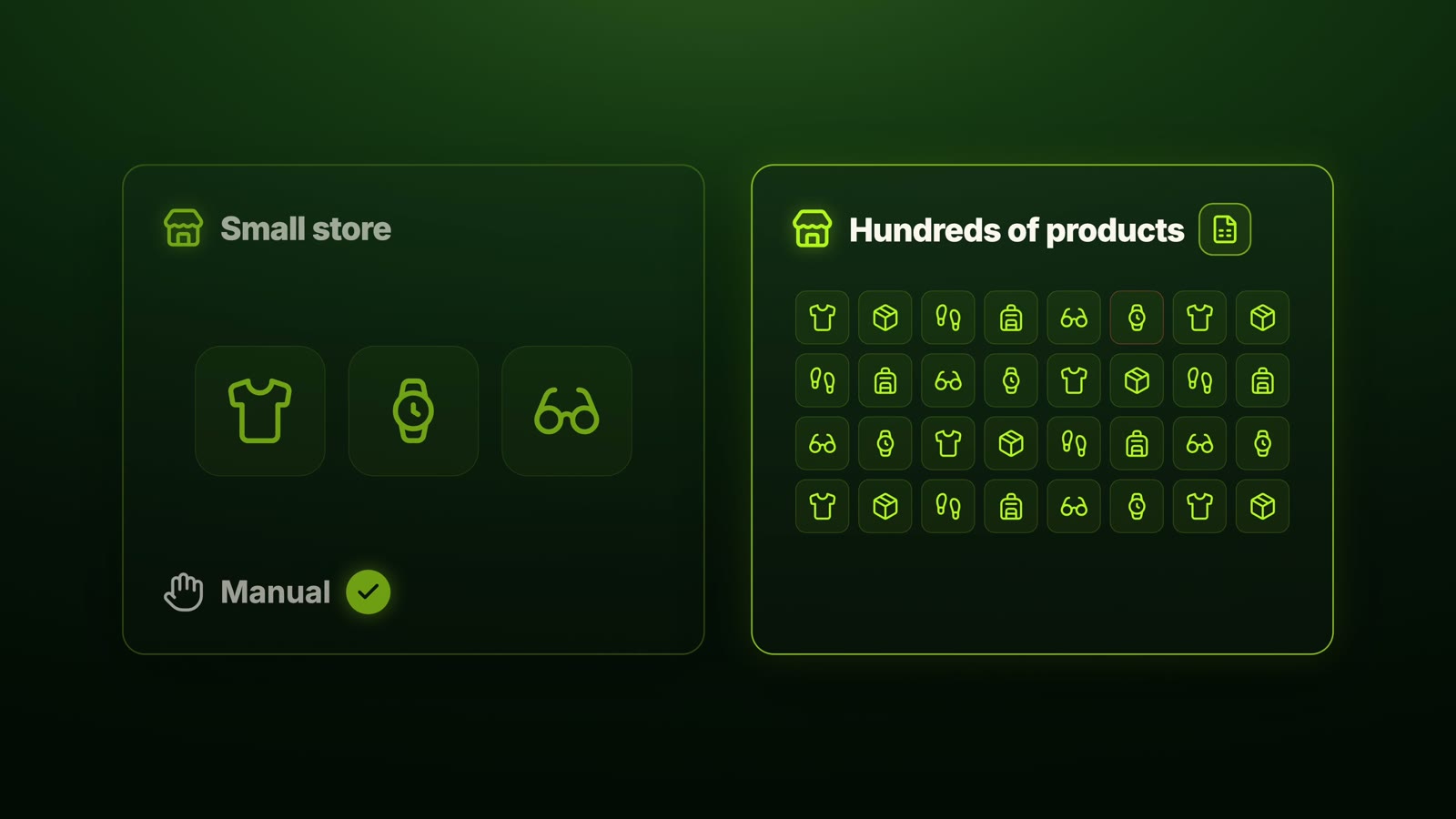
Small store, a handful of duplicates: the manual way works. It's free, and the handle + tag method is reliable.
Hundreds of products, or you import and sync often: an app like DDP will save you hours. It also has a free plan so you can try it first.
Either way, the end result is a clean catalog. Every product shows up once, and your customers see the right photo and the right price every time.
Related: The ultimate SEO guide for Shopify · How to create high-converting Shopify product pages
FAQ
Why does Shopify create duplicate products?
Shopify doesn't usually duplicate products on its own. Copies come from things that create products in bulk: a CSV import, a bulk edit, a product sync or migration app, or re-running an import that was already done. Shopify doesn't warn you when it happens.
How do I find duplicate products on Shopify?
Look at the product handle (the end of the product URL, under Search engine listing). Duplicates keep the same handle with -1, -2 and so on added at the end. For a whole catalog, export your products to CSV and filter the Handle column for handles ending in those numbers, or use an app that finds duplicates by title, SKU or barcode.
Can I delete Shopify products with a CSV import?
No. Removing a product's rows from the CSV and re-importing does nothing, and Shopify states that CSV files can't be used to delete products in bulk. Use the CSV to add a "duplicate" tag instead, then filter by that tag on the Products page and bulk delete.
How do I bulk delete products on Shopify?
On the Products page, filter or search for the products you want to remove, tick the checkbox to select them all, open the … (more actions) menu and choose Delete products. Deleting is permanent, so check the selection first.
Is there a free app to delete duplicate products on Shopify?
Yes. DDP Delete Duplicate Products has a free plan that deletes up to 100 products, and finds duplicates by title, SKU or barcode. Its paid plan removes the limit.
Can I review duplicates before deleting them?
Yes. Instead of a bulk rule, DDP's manual deletion step lets you search, sort and filter the duplicates by attribute, and show or hide columns, so you can compare the copies and delete only the ones you choose.
Do duplicate products hurt my store?
They can. Copies drift apart over time (stock, photos, prices), so customers may land on the wrong version, and you lose track of real inventory. Several near-identical product pages also compete with each other in search. See our Shopify SEO guide.
Watch the full video
Watch the full walkthrough on YouTube: How to Find & Delete Duplicate Products on Shopify (Bulk Fix).
Want help cleaning up your catalog or fixing your store? Work with me.
Which method are you going to use: the manual way or the app? Let me know in the comments on the video.