Shopify Apps & Tools Reviews
How to Add a Wishlist to Shopify (+ Back in Stock Alerts)

Quick answer: Shopify knows what sold, but not what people wanted and couldn't buy. I set up Stamp Wishlist & Back In Stock on my test store in three steps (wishlist page, turn the app on, verify your email), with no code. Then I tested it as a shopper. It saved the exact color and size, it worked without an account, and when I sold out the black polo in size M, it kept the shopper's email and the size they wanted. The free plan covers everything in this post, with 100 alerts a month.
Key takeaways
A sold-out size is a sale you can't even count. The shopper closes the tab and your store has no record they were there.
Test any wishlist app with 3 rules: it saves the exact size and color, it works for shoppers with no account, and it shows you which sizes people want.
Setup is three steps and no code. One theme toggle puts the heart on product pages, collection cards, the header and the wishlist page.
Collection cards save the first size in stock, not one the shopper picks. A second app, Stamp Show Variants, gives each color its own card and heart.
The insights report is the real payoff: sold-out variants, how many people asked to be notified, and an estimate of the revenue you're missing.
Watch the video
Prefer to watch? The 9-minute video shows the whole setup on my store, the shopper test, and the sell-out test at the end.
The sales your store can't count
Look at this: a black polo, size M, sold out. If someone wanted that exact shirt and can't buy it, they just close the tab. And your store has no record they were even there. That's a sale you lost, and you can't even count it.
A wishlist is supposed to fix this. But "they saved the polo" doesn't tell me which size to reorder.
3 rules for any Shopify wishlist app
Before I trust any wishlist app, I give it three rules. You can use them on any app you're looking at:
It saves the exact size and color, not just the product.
It works for a shopper with no account. I don't think many people sign up just to save a shirt.
It shows me which sizes people are looking for.
Without rule 3, a wishlist is a nice button with nothing behind it.
At the end of this post, I sell out a size on purpose to see if my store catches the customer.
The app: Stamp Wishlist & Back In Stock
The app I tested is called Stamp Wishlist & Back In Stock, by Sezerium. In your Shopify admin it shows up as Wishlist & Back In Stock under Apps. When it opens, the status card says the app is off, so shoppers see nothing yet.
Related: if you want shoppers to pick a color before they even open the product, see how to add color swatches to products in Shopify.
Step 1: Set up the wishlist page
The setup guide starts with the wishlist page, and the recommended choices are already picked:
The wishlist opens as its own page (you can also pick a modal or a drawer).
Sold-out products get a heart plus a Notify me button.
The heart uses the default style: a white circle that turns red when saved.

You just click Save. One thing to know before you do: the Heart + Notify me choice also switches on the Notify me button for sold-out sizes, so it's live from that moment.
Step 2: Turn the app on
Next, click Turn on in the status card. A new tab opens with the theme editor, and Stamp Wishlist is already switched on under App embeds. You can see the hearts in the preview, but nothing goes live until you click Save in the top right corner.

And that's the whole install. One toggle puts the heart on product pages, collection cards, the header and the wishlist page. No coding at all.
Step 3: Verify your email (don't skip it)
Go back to the app, which is still open in the first tab, and reload it. The status changes to All good. Two steps out of three.
Step 3 looks optional, but it's not. Type a sender name and a reply-to email, click Send verification email, then open your inbox and click the link.
Skip this step and not one back-in-stock email leaves your store.
The app says it plainly: alerts only go out from a store with a verified reply-to address.

Make it fit your store
In Settings → Wishlist, everything you change shows up in the preview on the right.
Style. You get a few ready-made styles: a white circle, a plain black heart, a bookmark, or your own colors for the icon, the background and the saved state. I kept the default. It turns red when it's saved, and I think a red heart is the one shoppers recognize without thinking.

Product cards. The heart can sit in the corner of the image or next to Add to cart. I kept it in the top right corner, because I think that's where people expect it on a grid. On the product page, I left it next to Add to cart. That's where the shopper's eyes already are when they're deciding.

Guest experience. Guests can save freely, be sent to sign in, or not see the wishlist at all. I picked Allow, which saves their list in the browser and merges it into their account if they sign in later. That's rule number two for me.

Where's the save button? When you change anything here, the save button isn't inside the app. It's Shopify's bar at the very top of the admin, and that's easy to miss.
Related: Shopify product page customization guide.
Shopper test: rules 1 and 2
Now I switch sides and shop like a customer, and I'm not logged in.
On the polo, I pick red, size L and tap the heart. It fills red and the count in the header goes to one. Keep your eyes on the heart: if the app only saved the product, it would stay red when I switch color. I select black and it's empty. Back to red, and it's filled again.

It saved red in L, not "the polo". So rule 1 passed, and I never logged in, so rule 2 passed too.
The collection grid limit (and the fix)
There's one limit. A collection card saves the color plus the first size in stock, not a size the shopper chooses. Out of the box, the grid doesn't let shoppers pick a variant, so the heart saves the first available one.
If you want customers to save different variants from the grid, the fix comes from a second app by the same team: Stamp Show Variants Collection. After you install it, you'll find it in your admin as Variants on Collection. Every color of a product gets its own card, and each card has its own heart.
I tap the heart on the black Flight Fleece: only black fills, beige and blue stay empty, and the count goes to two. I didn't set anything up for this. With both apps on, the heart showed up on the color cards by itself.

The wishlist page
Click the heart in the header and you're on the wishlist page. Each item shows the variant that was saved: the Flight Fleece in black and the Coste Polo in red / L. The link goes back to that exact variant, so shoppers land on red L, not on the default.

Save for later in the cart
In the cart, there's a Save for later link next to the trash icon. I added the Coste Suede in size 38 and clicked it:

The item leaves the cart and shows up in the From your wishlist strip, still in size 38.

Related: more ways to get people back to checkout in Shopify conversion rate optimization.
Sell out a size: Notify me when available
Now I'm the store owner again. In Products → Inventory, I find the polo in black / M, change Available from 10 to 0, and save.

Back as a shopper, I pick black, then M. The size is crossed out, and Add to cart turns into a Notify me when available button. I click it, a small popup asks for my email, I type it in and click Notify me.

That's the shopper from the start of this post: someone who wanted this exact shirt. This time the store kept their email and the size they wanted.
Related: if you'd rather keep selling while a size is out, compare the best Shopify preorder apps.
Price-drop and wishlist reminder emails
Back-in-stock alerts are on by default, but two alerts are off. In Settings → Emails I turned on:
Price-drop alerts, which go out when a saved item drops by at least 5% (the default threshold).
Wishlist reminders, sent 7 days after a shopper goes quiet (the default). They only go to subscribers who agreed to them.
Then click Save (in Shopify's bar at the top, again).

The back-in-stock email
Next to Back in stock, click Edit design. The heading says Good news: it's back, and the line under it names the product and the variant. So the shopper reads which size is back instead of guessing from the shirt. The price-drop email names the variant too.
You can change the blocks, colors and fonts, but the default is fine to send as it is.

Rule 3: which sizes people want
Now the part I promised. Open Product insights and switch from Products to Variants, so every size and color gets its own row. Then set the stock filter to Out of stock only. This is every size you can't sell right now.
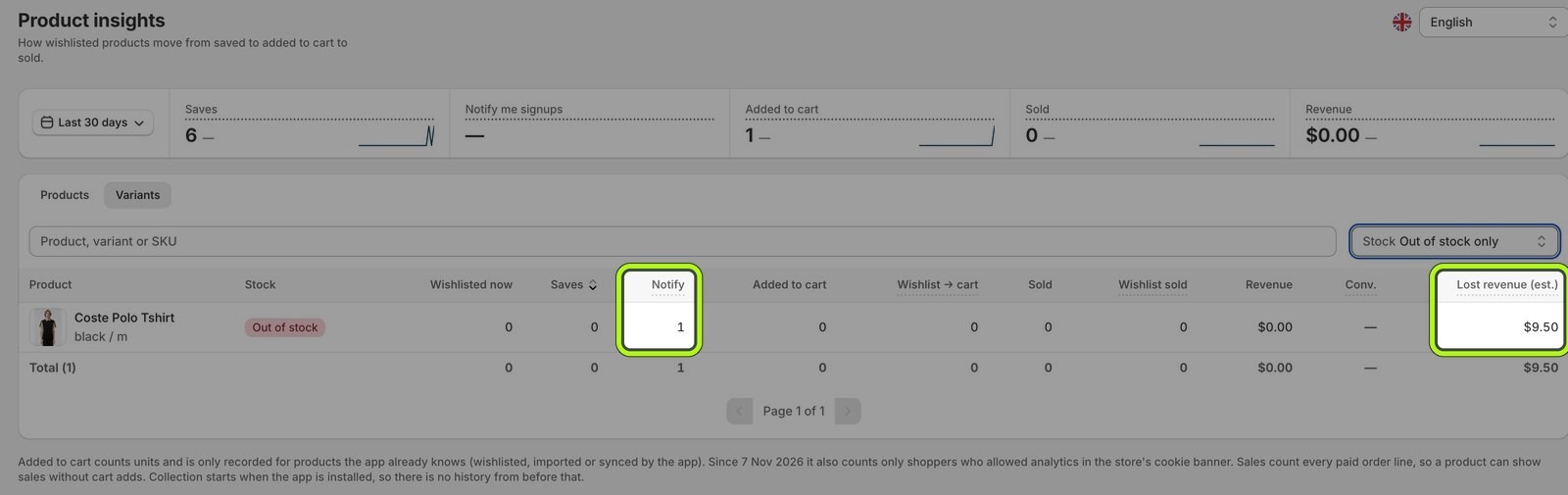
Look at the Notify column: that's how many people asked to hear when this exact size is back. Lost revenue is the app's estimate of what that missing stock is worth. On my test store it's one signup and $9.50, but on a real store this list grows every day a size is gone.
So now I know which size to reorder and roughly what it costs me while it's gone. Rule 3 passed: my store caught the customer. Then I put black M back in stock, 10 units, and saved.
Check this list before you place your next order, not after.
In my opinion, this can be the most useful number in your store, as long as something is there to record it.
Who this fits
This fits stores with sizes and colors: clothes, shoes and anything where the variant is the whole question. If every product you sell has one variant, you don't need this part, and a simpler wishlist is fine.
Free plan, Pro plan and one weak spot
The free plan gives you everything in this post, with 100 alerts a month (Stamp pricing). That's plenty to get a real feel for the app, and you can upgrade any time.
For more professional setups, the Pro plan connects to Klaviyo, Omnisend, Mailchimp, Brevo and Shopify Flow, so the alerts can run through the tools you already use.
One weak spot: it's a new app. Its App Store listing says it launched in September 2026, so you'd be early.
Test your own wishlist in a minute
Do one thing today. Open your own store, save one size of a product, then switch to another size.
If the heart stays filled, your wishlist saved the product, not the size, and it can't tell you what to reorder.
FAQ
Does Shopify have a built-in wishlist?
Not out of the box. Horizon, the theme on my test store, has no wishlist button until you add an app. Stamp adds it with one theme toggle (an app embed), so you don't need to edit any code.
Can shoppers use a Shopify wishlist without an account?
With Stamp, yes. Set the guest wishlist to Allow, and guests save their list in the browser. If they sign in later, it's merged into their account. You can also require sign-in or hide the wishlist from guests.
How do back-in-stock alerts work on Shopify?
When a size sells out, the Add to cart button becomes Notify me when available. The shopper leaves their email, and when you restock that variant the app emails them. With Stamp, verify your reply-to email first, or no alerts go out.
Can a Shopify wishlist save a specific size or color?
It depends on the app, which is why it's rule 1. Stamp saves the exact variant on the product page. On collection cards it saves the first size in stock, unless you add Stamp Show Variants so every color gets its own card.
Is Stamp Wishlist free?
There's a free plan with 100 alerts a month that covers everything in this post. Paid plans add more alerts, and the Pro plan adds integrations like Klaviyo, Mailchimp and Shopify Flow. Check the App Store listing for current prices.
Watch the full walkthrough
The full 9-minute video, with every click on my store, is above. Watch it on YouTube, and if you want help setting up your store, work with me.
Now I'm curious: would you let guests save without an account, or force sign-in so you get every email? Tell me in the YouTube comments.