Shopify Apps & Tools Reviews
Your Shopify Cookie Banner Doesn't Stop Meta (You Could Get Fined)

Quick answer: I tested Shopify's free cookie banner on a store with a Meta Pixel pasted into the theme code. Meta received a PageView before I touched the banner, got a message when I clicked Decline, and recognised my browser again on reload. Shopify's banner only controls Shopify-managed tracking; a pixel in your theme never asks it for permission. The fix is a consent management platform that blocks scripts until the visitor answers. I used Cookiebot CMP, and after setup the same test came back empty until I clicked "Allow all".
Disclosure: this video was sponsored by Usercentrics, the company behind Cookiebot, and the Cookiebot links in this post are affiliate links. This post is not legal advice; your obligations depend on where you sell and what you track.
Key takeaways
A visible cookie banner doesn't mean tracking is blocked. On my test store, the Meta Pixel fired on page load and kept firing after I clicked Decline.
Shopify's banner stores the choice and waits to be asked. Shopify's own tools and official app pixels ask; a pixel pasted into
theme.liquiddoesn't.It's a money problem, not just a privacy one. GDPR fines can reach 4% of global yearly revenue, and US stores are receiving demand letters under a California privacy law.
The fix works at the script level. Load the consent platform first, mark manual pixels with
type="text/plain"anddata-cookieconsent="marketing", and retest.Shopify-injected trackers need one more snippet. Shopify's own tools and official channel apps can't be marked up; connect them through Shopify's Customer Privacy API.
Don't treat it as a one-time fix. Rescan every time you install a new app.
Watch the video
Prefer to watch? The 13-minute video covers the full test, what Meta receives, why Shopify's banner misses it, and the complete Cookiebot setup, including Shopify-injected trackers.
The test: Shopify's free cookie banner vs a Meta Pixel
This is a normal Shopify store with the free consent banner Shopify gives every store. Its job is simple: before the store tracks you, it asks, "Is that okay with you?" Most store owners turn it on and think they're covered.

To test it, I opened Chrome's developer tools, went to the Network tab and filtered it to facebook, because this store has a Meta Pixel (the small piece of code that tells Meta who visits your store, so you can run ads to them later). Then I loaded the page without touching the banner.
Meta immediately got a message: someone opened this store. I hadn't said yes. The banner was still asking. The data was already gone.

Then I clicked Decline. Meta received a new event saying this visitor clicked a button, and the button's text was "Decline". So Meta now knew I said no, because the pixel told it.

Finally, I reloaded the page. A new PageView, with the same browser ID as before. Meta knew it was the same person coming back, after saying no.
I said no. Meta kept tracking me anyway.
If you run a Shopify store with a pixel added this way, there's a good chance this is happening on yours right now, and you'd never notice, because the banner looks like it's doing its job.
What Meta actually received
"A page view" sounds harmless. It's more than that. Inside the request payload:
evis the event: what happened (PageView, or a button click).dlis the exact page you were on, so Meta knows which store and which page in it.sw/share your screen width and height, andtzis your time zone.fbpis the important one: an ID Meta saves in your browser the moment you land.
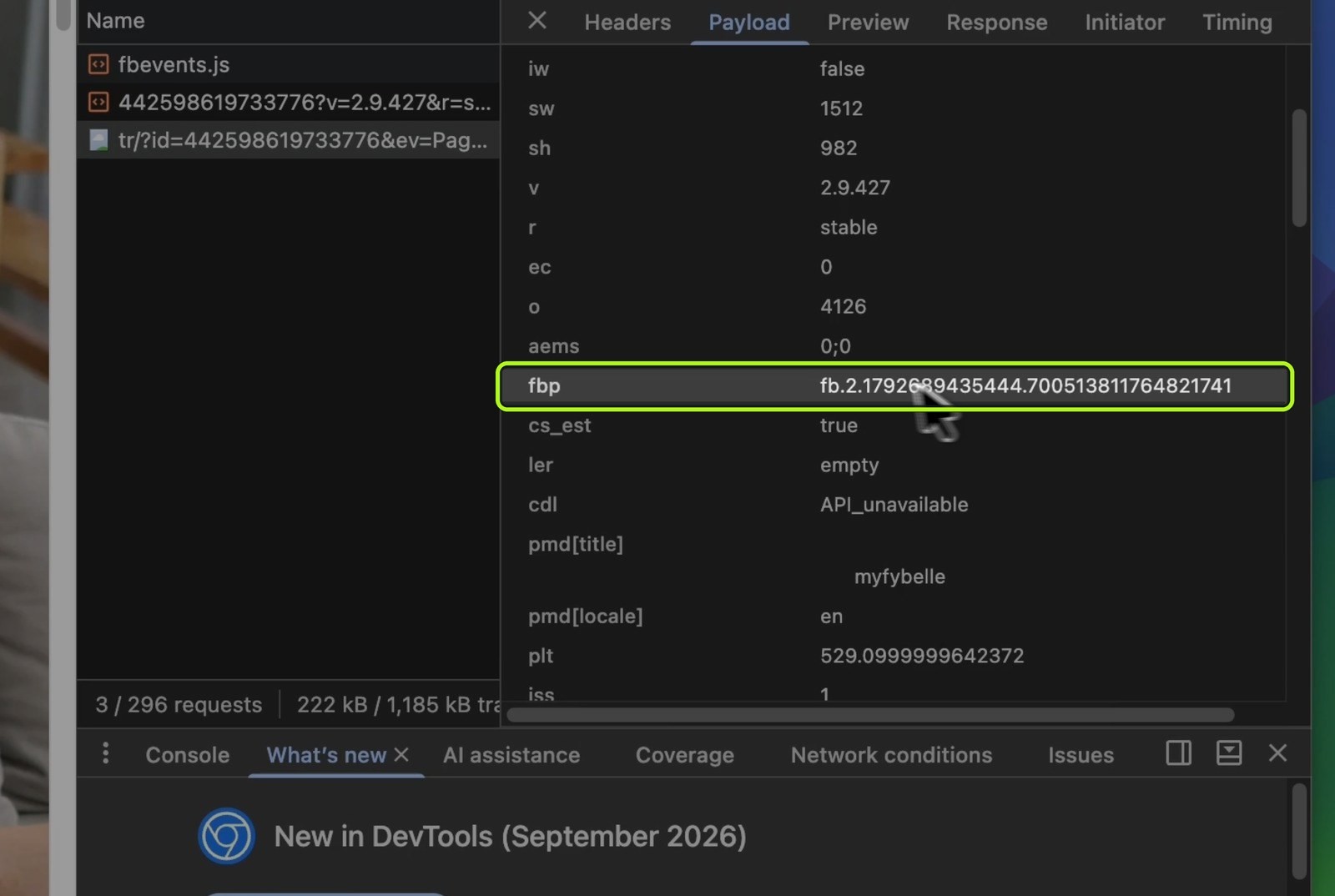
Think of fbp as a name tag. Every time you come back, to this store or to any other site with a Meta Pixel, that name tag goes with you. That's how Meta knew it was me after I clicked Decline. On top of that, Meta's server also receives your IP address, because that's how every request on the internet reaches its destination.
In Europe, an identifier like this counts as personal data, and saving it in a browser needs a yes first. I never gave one.
This isn't only a small-store problem. I ran the same test on a big, well-known Shopify brand with Shopify's banner on the page: Meta created the same browser ID, and 16 milliseconds later sent a full page view with product names and prices, before I touched the banner.
Why this is a money problem (GDPR and US privacy law)
Europe: GDPR requires a valid legal basis before you process personal data, and for advertising cookies that usually means consent. Serious infringements can be fined up to €20 million or 4% of worldwide annual turnover, whichever is higher.
United States: law firms have been sending demand letters to online stores under the California Invasion of Privacy Act (CIPA), often naming tracking pixels, and the Meta Pixel in particular. It doesn't matter where your store is based: if people from California visit it, you can get one. These letters often ask for tens of thousands of dollars to settle.
The tool named most often? The Meta Pixel. The same one from the test.
Why Shopify's cookie banner doesn't stop it
Shopify's banner isn't broken. It just does less than most people think.
When a visitor clicks Accept or Decline, the banner saves that choice through Shopify's Customer Privacy API, which applies it to Shopify-managed surfaces like pixels, audiences and checkout. Then it waits for other tools to come and ask: did this person say yes?
Shopify's own tools ask.
Pixels added through Shopify's system ask too, like the official Meta and Google apps.
A pixel pasted straight into your theme code doesn't ask. It runs the moment the page loads and never checks with anyone.

Think of the banner as a doorman. He checks everyone who walks up to the front door. But a pixel in your theme code doesn't use the door: it climbs in through the window.
This is more common than you'd think. Maybe a developer pasted your pixel years ago. Maybe an app added a script when you installed it. Chat widgets, heatmaps, review apps and popups often load their own code, and the banner never sees it.
You might be thinking: I'll just move my pixel to the official Meta app. That helps, for that one pixel. But what about the chat widget, the reviews app, the heatmap tool? Shopify's banner can't show you what's firing on your store.
Related: 7 common Shopify mistakes to avoid and how to remove unused JavaScript from your Shopify store.
The part most store owners miss: Google Consent Mode
Google needs to know what each European visitor chose. That's Consent Mode: it passes the visitor's consent status to Google so its tags adjust. For EEA traffic, Google requires these consent signals to keep using measurement, ad personalisation and remarketing.
If Google doesn't get that signal, it limits what it can do with your data: your remarketing audiences get smaller and your conversion tracking gets weaker. You end up paying for ads with worse data.

So what you need is simple: block everything until the visitor answers, then tell Google and Meta exactly what they chose. It matters most when your traffic spikes (a big sale, a product launch, Black Friday), because more visitors means more people tracked the wrong way, more risk for your store and messier data in your ad accounts.
How to fix it: a consent management platform (Cookiebot)
You need something that sits in front of every script on your store and stops it until the visitor answers. That's a consent management platform (CMP). I used Cookiebot CMP by Usercentrics.
The banner is just the part your visitors see. The real work happens underneath it:
Scan: Cookiebot scans your store and finds the cookies and trackers on it, including ones you forgot about or that an app added without telling you.
Block: it blocks the ones that need consent until the visitor makes a choice. This is what closes the window.
Record: when someone says yes or no, it keeps a record, so if anyone asks you can show who agreed to what.
Signal: it tells Google and Meta what each visitor chose, so your ads keep working with the data you're allowed to use.
It also shows the right banner to the right people (visitors from Europe, California or elsewhere get the consent flow for their region) and covers GDPR, ePrivacy, CCPA, CIPA and more, updating when the laws change. There's a 14-day free trial with all Premium features.
Step 1: Create the Cookiebot account and banner
Cookiebot can be installed two ways on Shopify: manually in your theme, which is what I recommend if you have a custom theme or pixels pasted into the code, or with the Cookiebot Shopify app. I show both.
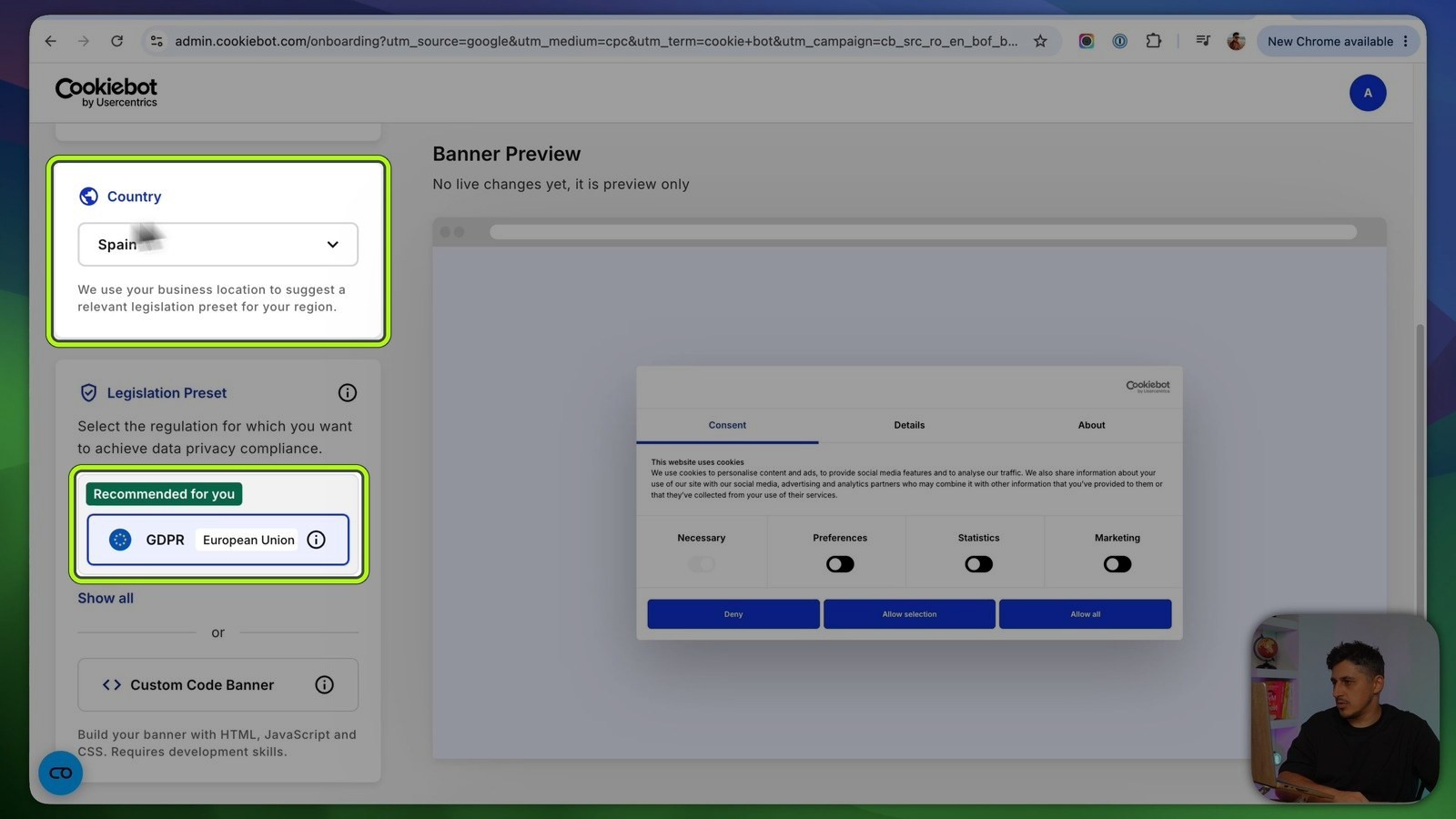
After creating the free account, add your website, then pick your country and the legislation preset. My test store is based in Spain, so I used GDPR. You can view all presets with "Show all".
Next, design the banner:
Layout: dialog, compact (a small window on the side) or a bar at the bottom.
Design: light, dark or custom theme, button styles, colours and your logo.
Content: language and wording, so it fits your brand.
Privacy: an optional tab visitors can use to change their settings later.

Step 2: Install Cookiebot manually in theme.liquid
Because my store already has manual tags, I installed it in the theme:
In Shopify admin, go to Online Store → Themes, and on your published theme click ⋯ → Edit code.
Open Layout →
theme.liquid.Find the opening
<head>tag and paste the script Cookiebot gives you right after it.Save.

Putting it first matters: it ensures Cookiebot is the first script that loads, so it can stop any other script that gets injected or that's sitting in your theme without you knowing.
Step 3: Block a manually added Meta Pixel
That stops most scripts and trackers. But a pixel pasted manually into the theme (like my Meta Pixel at the end of the <head>) needs one more change so Cookiebot can control it. Cookiebot explains this in its manual cookie blocking guide: you add two attributes to the script tag.
type="text/plain"tells the browser to treat the script as plain text, which disables it.data-cookieconsent="…"tells Cookiebot which consent category re-enables it:preferences,statisticsormarketing.
The Meta Pixel is a marketing pixel, so:

Tip: don't use
necessaryorunclassifiedas values. Scripts that are truly necessary simply shouldn't be marked up at all.
Step 4: Run the same test again
Same store, same test. In an incognito window, the Cookiebot banner appears. In the Network tab filtered to facebook, I refreshed, and there was no Facebook pixel request. I cleared the filter to check: all the other files were loading, but the Meta Pixel was stopped by Cookiebot.

Only after I clicked Allow all did the pixel load and send its events. Meta only tracks people who actually said yes.
Step 5: Cover the trackers Shopify injects (Customer Privacy API)
The markup handles scripts you added yourself. But if your store uses Shopify's own tracking tools or official channel apps like Meta or Google, you won't find those scripts in theme.liquid, because Shopify injects them directly. You can't mark them up.
For those, Cookiebot connects to Shopify's Customer Privacy API with a small snippet, as described in Cookiebot's Shopify installation guide:
In the code editor, under Snippets, click Add a new snippet and name it
cookie-consent.Paste in the snippet code from the guide and save. It passes the visitor's Cookiebot choices (statistics, marketing, preferences) to Shopify.
In
theme.liquid, find{{ content_for_header }}and add this line directly under it, then save:
Good to know: this doesn't block Shopify's own scripts before consent the way the markup does. According to Cookiebot's guide, it makes them session-based instead of persistent until the visitor says yes.
Alternative: the Cookiebot Shopify app
Cookiebot primarily recommends the app: according to its installation guide, it runs through Shopify's App Embed framework, which handles script blocking automatically without the manual markup.
Before installing the app, I removed the manual script line from theme.liquid and saved. Then:
Install the Cookiebot CMP app from the Shopify App Store.
Click Open Theme Editor and enable the app embed, then save. The banner appears straight away.
Back in the app, click Check activation status: the banner is activated automatically.
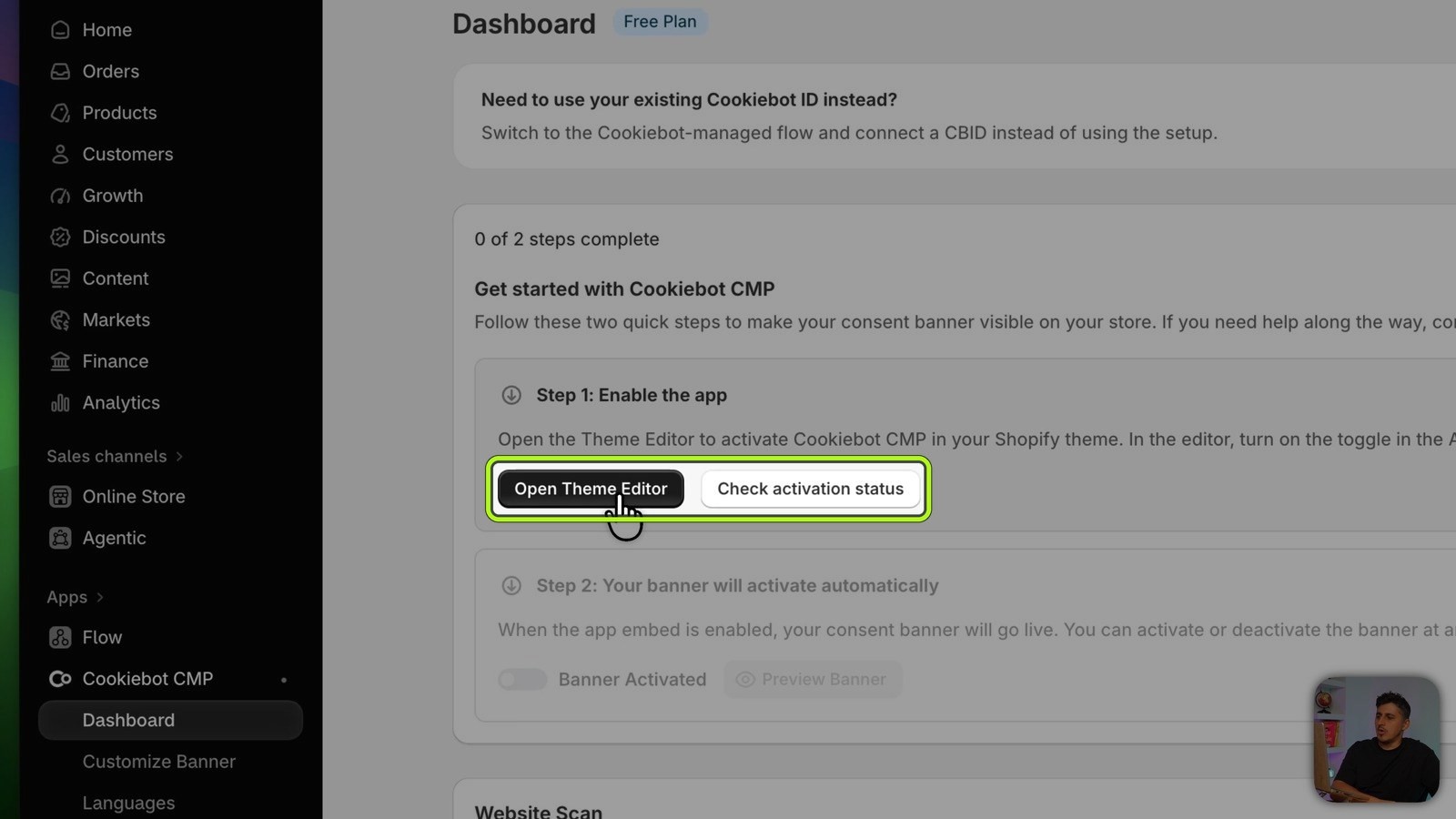
From the dashboard you can customize the banner (format, content, privacy settings, and a button visitors can use to change their settings while browsing), switch it on or off while you work on it, see the website scan with the date of the last scan, trigger a scan manually, and manage Google Consent Mode.

I'm using the GDPR version of the banner, the strictest one, which covers most of what other regions ask for. If you want to be stricter with trackers, go to Third Party Services and enable the auto blocker: every tracker and script will wait for consent before firing. Depending on what your store loads, test the auto blocker before relying on it.

Related: Shopify speed optimization: load your store in under 3 seconds, worth re-checking after adding any new script.
My advice: don't treat this as a one-time fix
Cookiebot scans your store periodically to catch new trackers. But every time you install a new app, run a scan yourself right away.
A tool like Cookiebot does the heavy lifting: it finds the trackers, blocks them, keeps the records and stays up to date with the laws. But it's still your store. Check your setup, and make sure what you're running matches what you tell your visitors.
FAQ
Does Shopify's cookie banner block the Meta Pixel?
Only if the pixel is added through Shopify's system, such as the official Meta app or a custom pixel that respects the Customer Privacy API. A Meta Pixel pasted into theme.liquid runs on page load and ignores the banner. In my test it fired before consent and after I clicked Decline.
How do I check if my Meta Pixel fires before consent?
Open your store in an incognito window, open Chrome DevTools → Network, filter by facebook and reload without touching the banner. If you see fbevents.js and tr/ requests with ev=PageView, the pixel fires before consent.
How do I block a manually installed Meta Pixel with Cookiebot?
Load the Cookiebot script first in theme.liquid, then change the pixel's script tag to <script type="text/plain" data-cookieconsent="marketing">. Cookiebot only runs it after the visitor accepts marketing cookies. See Cookiebot's manual cookie blocking guide.
What about Shopify's own tracking and the official Meta or Google apps?
Shopify injects those scripts itself, so they can't be marked up manually. With a manual Cookiebot install, add the cookie-consent snippet and {% render 'cookie-consent' %} under {{ content_for_header }} so Shopify receives the visitor's choice through its Customer Privacy API. Cookiebot notes this makes those scripts session-based rather than blocking them before consent. Steps: Cookiebot's Shopify installation guide.
Is moving my pixel to the official Meta app enough?
It fixes that one pixel. Chat widgets, heatmaps, review apps and popups can still load their own scripts, and Shopify's banner can't show you what's firing. A CMP scans for those and blocks them too.
Do I need Google Consent Mode for a Shopify store?
If you run Google Ads or GA4 for visitors in the EEA, Google expects consent signals; without them your remarketing audiences and conversion tracking get weaker. Cookiebot can send these signals for you.
Can US stores get in trouble for this?
Yes. Law firms have been sending demand letters to online stores under the California Invasion of Privacy Act, often naming tracking pixels, and the store doesn't have to be in California, only its visitors. This isn't legal advice; check with a lawyer for your situation.
Watch the full video
Watch the full video on YouTube to see the complete test and both Cookiebot setups step by step. Try Cookiebot with the 14-day free trial.
Want help auditing the scripts and tracking on your store? Work with me.
Have you checked your own store yet? Run the test and tell me in the comments what you found.